Import and Export Claiming Schemes
You can import and export claiming schemes by sharing them between projects and by uploading an Excel file from the Disciplines and claiming schemes page.
Share claiming schemes across projects
Use this option when you want to quickly copy claiming schemes between projects without making changes to them.
Import from another project
-
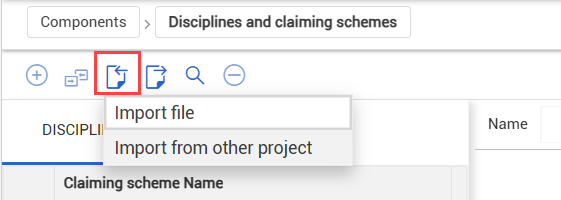
In the top toolbar of the Disciplines and claiming schemes page, click the Import icon, and then select Import from other project.
-
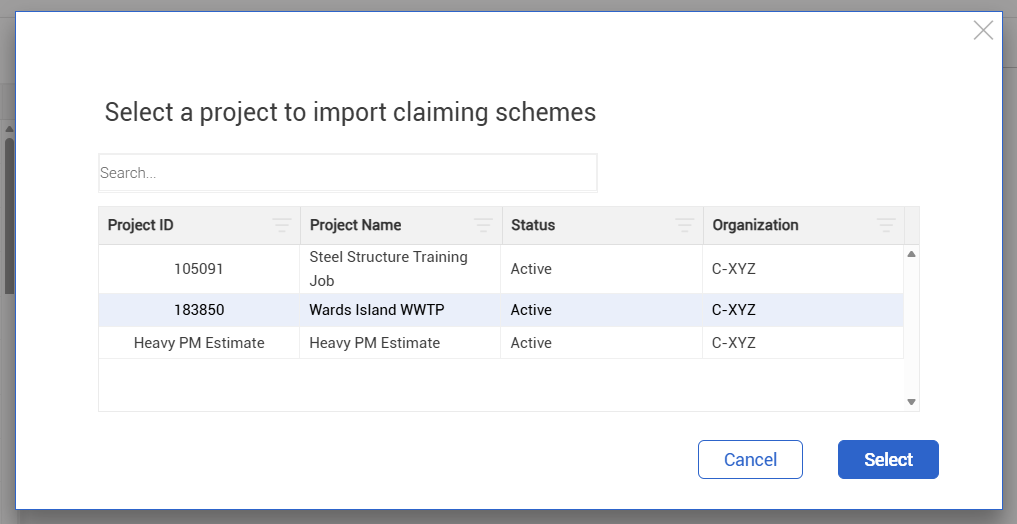
Select a project from the list.
You can only import claiming schemes from one project at a time.
-
Click Select.
All the claiming schemes from the selected project are imported into your project.
Export to another project
-
To export a specific set of claiming schemes, click the check boxes to select the claiming schemes. If you want to export all claiming schemes, do not select any check boxes.
-
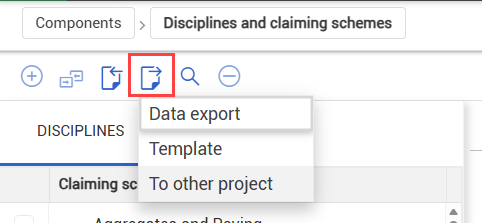
In the top toolbar of the Disciplines and claiming schemes page, click the Export icon, and then select To other project.
-
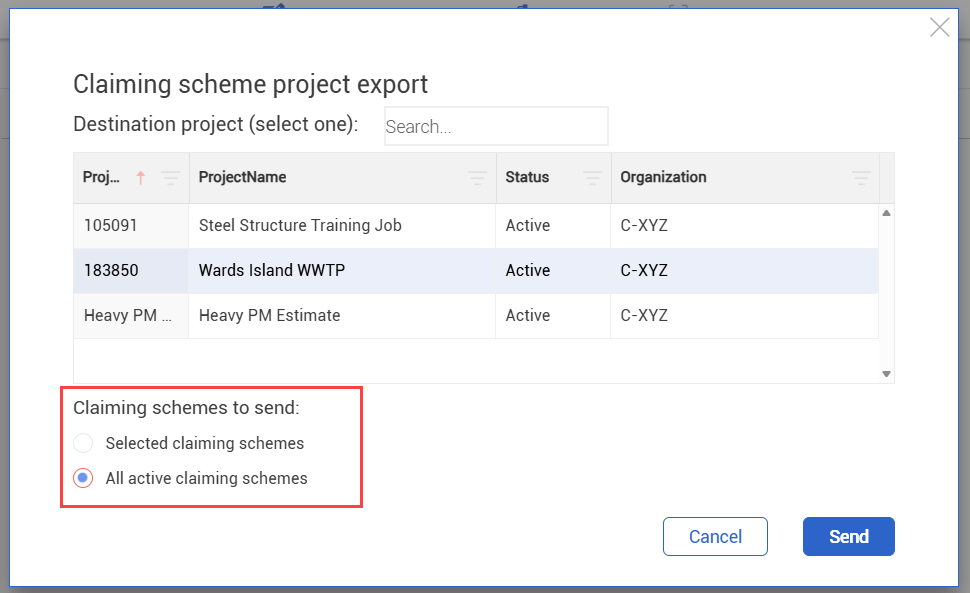
Select a project from the list.
-
Under Claiming schemes to send, choose Selected claiming schemes if you want to export a specific set of claiming schemes. Otherwise, choose All active claiming schemes.
-
Click Send.
The claiming schemes are exported to the selected project.
Import and export via Excel
You can import and export Excel files to help you manage claiming schemes.
Export claiming schemes
-
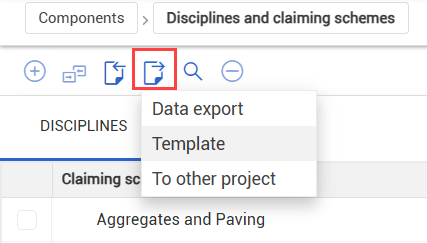
In the top toolbar of the Disciplines and claiming schemes page, click the Export icon, and then select Data export.
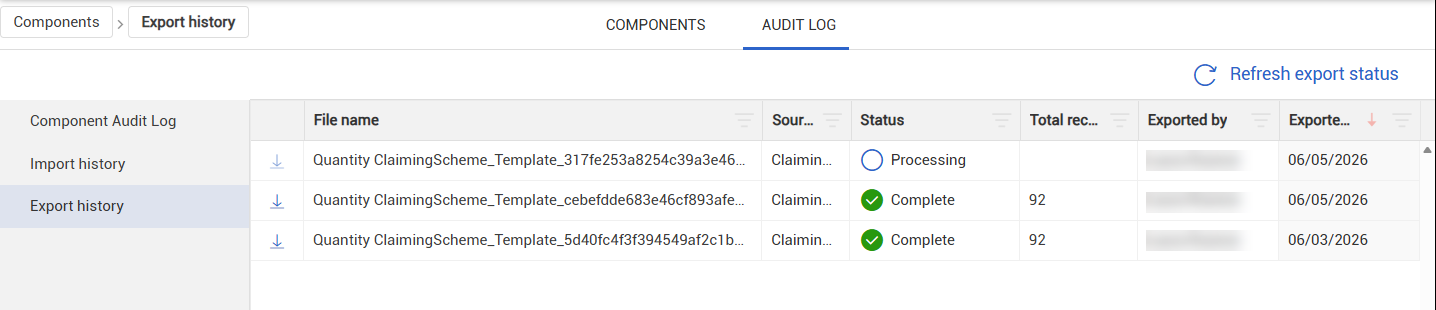
The Export history page of the Audit Log tab opens where you can view the details of the export, including the status.
-
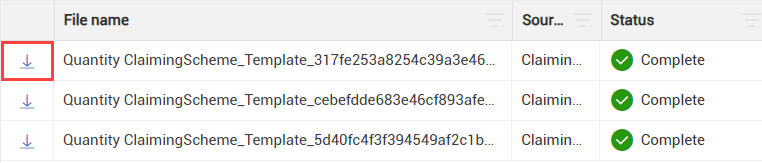
When the status of the export is complete, click the Download icon to download the Excel file.
Import claiming schemes
To import claiming schemes to your project, you first need to prepare an import file. To get started, export a template from Plan which includes all the necessary details.
To export a template, click the Export icon, and then select Template.
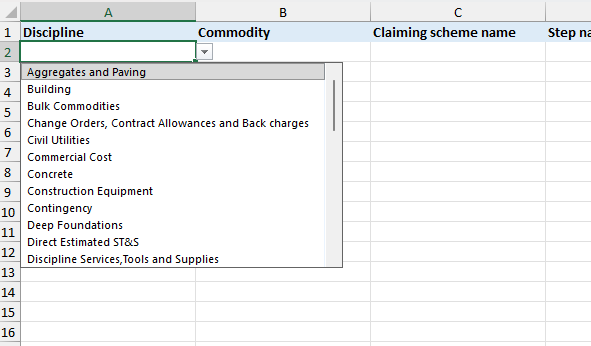
Open the downloaded Excel file to begin entering your claiming scheme data.
Note that the file is populated with validated data from your project. Click within a cell to see a drop-down list of options.
To enter a claiming scheme with multiple steps, add a new row for each step of the claiming scheme. Make sure the Discipline and Claiming scheme fields are the same across steps. Use the Step sequence column to indicate the order of the claiming scheme steps.
The Import feature can be used to add new claiming schemes to your project or to make changes to existing claiming schemes. For existing claiming schemes, some details cannot be modified if the associated component has a quantity claimed against it.
Export a claiming scheme template
You can export claiming schemes as a Microsoft Excel template, make updates outside the application, and then import the updated file to apply bulk changes.
- On the Disciplines and claiming schemes page, select the Export icon.
-
Select Template.
-
Save the Excel template.
-
You can now use the template to update the claiming scheme data.
Import claiming schemes
-
In the top toolbar of the Disciplines and claiming schemes page, click the Import icon, and then select Import file.
-
Select your saved import file, and then click Import.
-
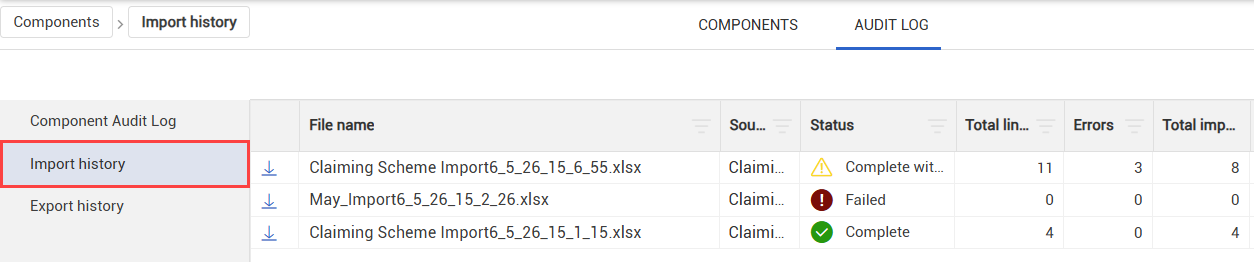
From the Audit Log tab, open the Import history page.
-
Review the status of your import.
-
If the status is Complete, your claiming schemes have been successfully imported.
-
If the status is Failed, the import was unsuccessful, and you must try to import again.
-
If the status is Complete with errors, corrections must be made before the import can be completed.
Correcting import errors
On the Audit Log tab, a status of Complete with errors means that corrections are required before the import can be completed. Any records without errors are still imported.
The Errors column shows the number of records that could not be imported. The Total imported column shows the number of records that have been successfully imported.
Hover over the error indicators to view more details. Click within the cells to make changes.